Related tools for your next step
Play An Online Virtual Piano In Three Steps
Use this Online Virtual Piano to start with clear notes, then move into wider range, chords, sustain, and keyboard shortcuts.
Choose Your Piano Layout
Open CreateMusicAI and start in Beginner mode when you want a focused Virtual Piano keyboard with wider keys, visible labels, and a readable C3 to B5 practice range. Switch to 88 Keys when the melody needs deep bass, high treble, or the same A0 to C8 span players expect from a real piano.
Play With Touch Mouse Or Shortcuts
Click, tap, or use the mapped computer keys to play piano online without installing an app. Z through M cover the lower shortcut octave, Q through U cover the upper octave, [ and ] shift the shortcut range, and Space toggles sustain for longer chords.
Practice Notes Chords And Range
Turn on note labels when you are learning the keyboard, switch to solfege when syllables help ear training, and watch the visible range and last-note readouts. The Online Virtual Piano keeps the controls close to the keys so you can test intervals, chords, and melody ideas quickly.
Guided Song Practice
Practice mode turns the virtual piano into a simple song coach. Choose from five beginner-friendly songs, then follow each phrase with clear note and keyboard prompts.
Follow Highlighted Keys
The next piano key is highlighted only while practice mode is active, so beginners always know what to play next without losing free-play control.
Match Keyboard Shortcuts
Each note also shows a matching computer-key shortcut, letting you practice from the top guide instead of searching across the full keyboard.
Choose More Beginner Songs
Start with Twinkle Twinkle Little Star, Frere Jacques, Ode to Joy, Mary Had a Little Lamb, or Hot Cross Buns. More guided songs can be added later with the same phrase-by-phrase system.
Keyboard Learning Basics
Understand note names, black-key groups, octaves, and simple patterns before you practice songs.
C D E F G A B
White Keys
White keys repeat the same seven note names across the keyboard. Once you find C, the pattern continues in order.
Groups of 2 and 3
Black Keys
Black-key groups help you locate notes quickly. Find a group of two black keys; the white key just to its left is C.
C3, C4, C5
Octaves
The number after a note shows its octave. C4 is middle C; higher numbers sound higher and lower numbers sound lower.
C# / Db
Sharps And Flats
A black key can have two names depending on direction. C# and Db are the same physical key.
Step by step
Simple Melodies
Many beginner songs move through nearby notes. Use labels first, then hide them once the pattern feels familiar.
Play notes together
Chords
A chord is several notes at the same time. Try C, E, and G together to hear a basic C major chord.
Virtual Piano Controls Built For Real Practice
This online virtual piano keeps the keyboard simple while covering 88-key range, note labels, sustain, browser sound, and shortcuts players ask for most.
Beginner Layout With Readable Labels
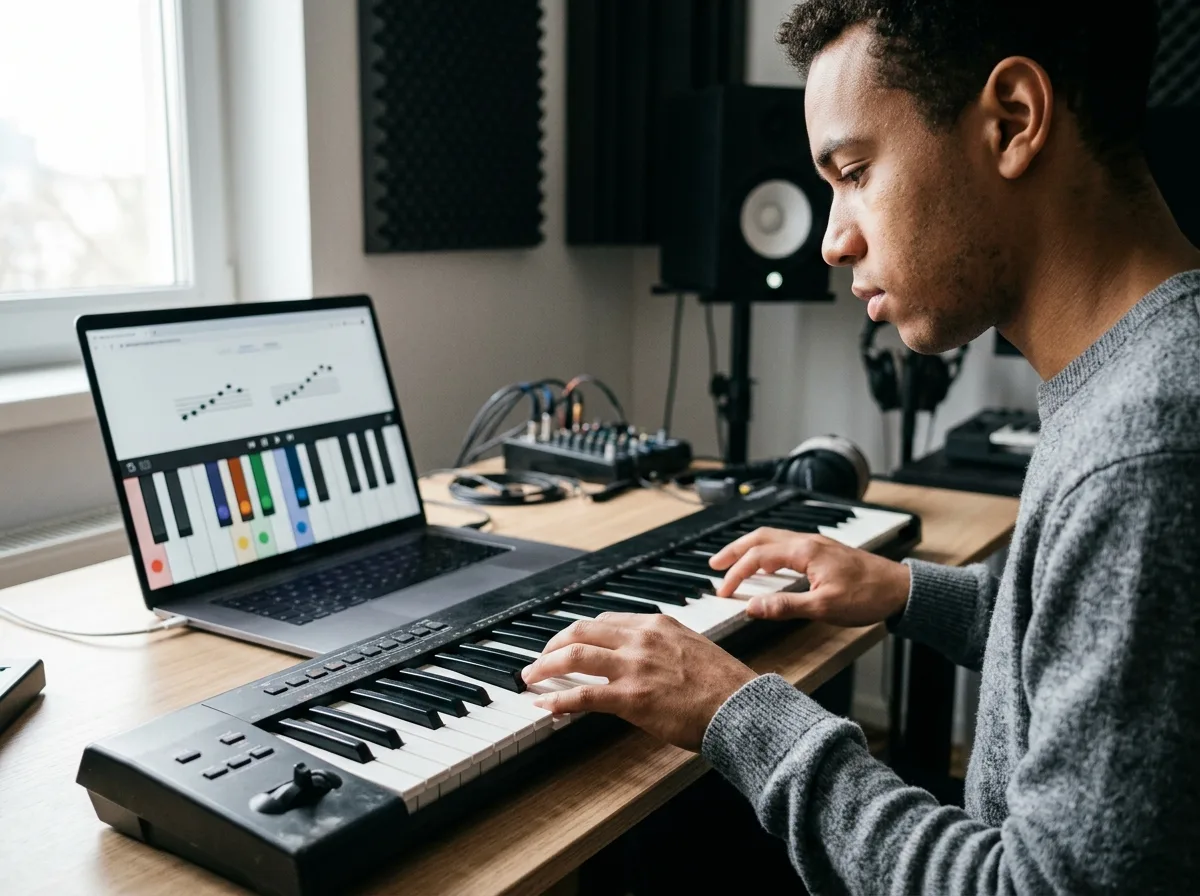
CreateMusicAI's Virtual Piano starts with a focused beginner layout so new players can see note names, letter shortcuts, and the repeating C-D-E pattern without squeezing through 88 tiny keys. It is useful for first melodies, simple scales, and classroom screen sharing.
Full 88 Key Range When You Need It
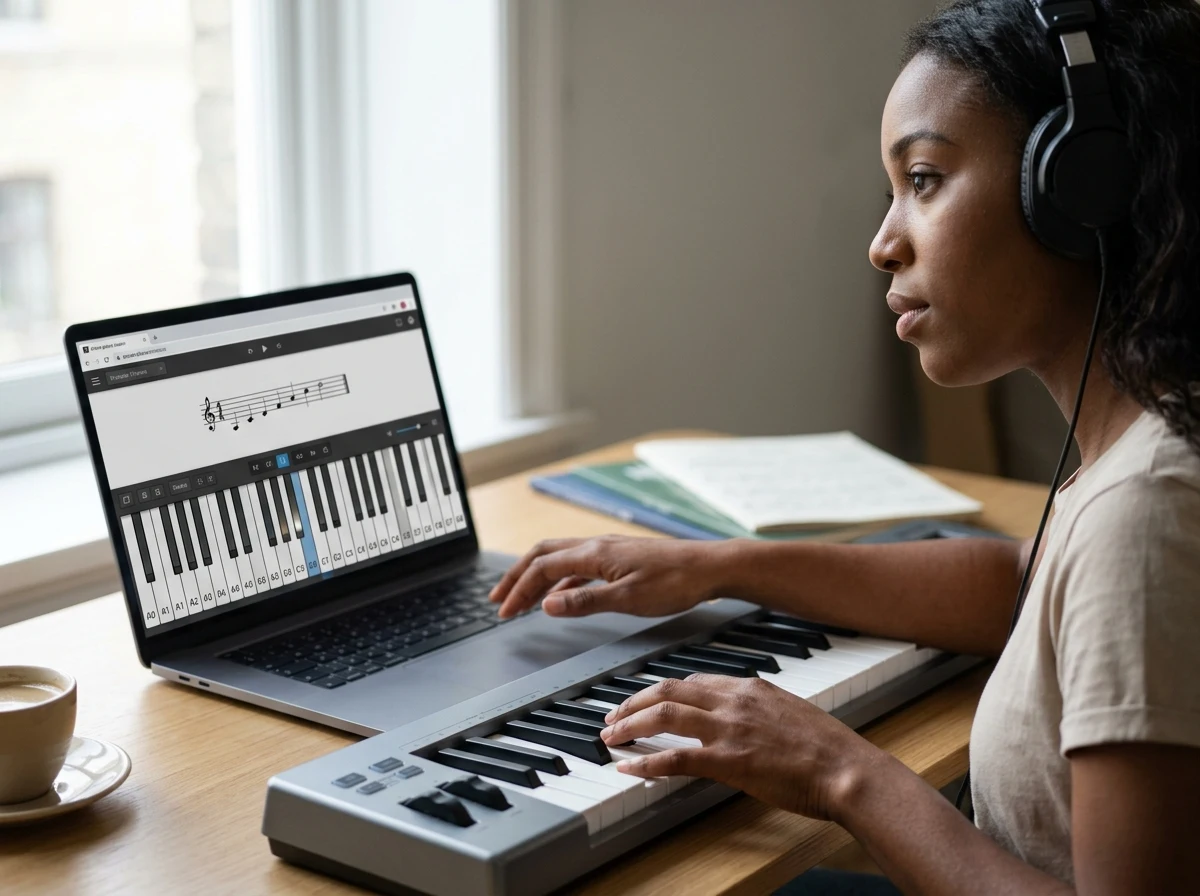
Switch the Online Virtual Piano into 88-key mode when a song needs real register movement. The scrollable keyboard covers A0 through C8, so bass notes, middle chords, and bright top-line melodies stay available without shrinking the virtual piano keyboard beyond usable size.
Sampled Piano Sound In The Browser
Our Virtual Piano loads sampled piano tones with browser audio for a more believable attack than a basic beep-style synth. If samples fail, the page falls back to a lightweight browser synth, so practice can continue instead of stopping on a silent keyboard.
Keyboard Shortcuts That Match Practice
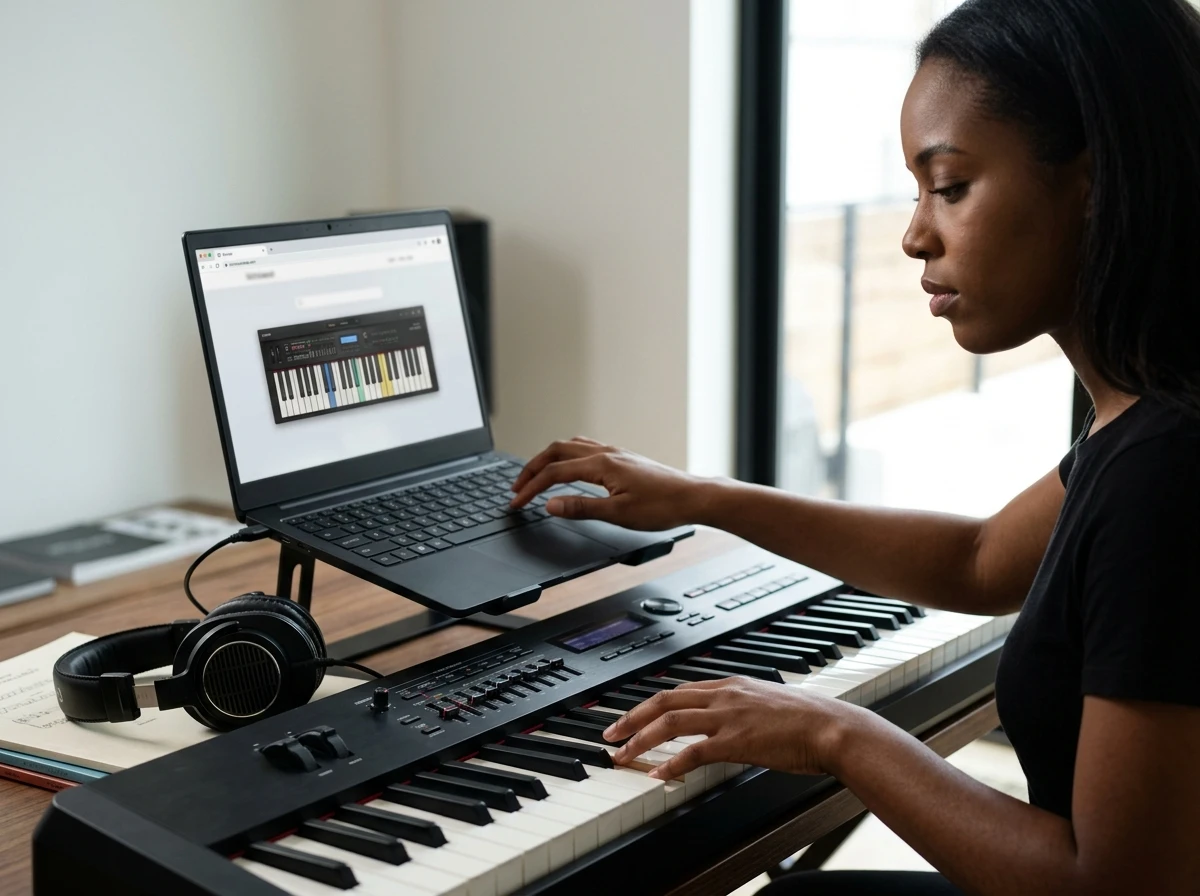
The Online Virtual Piano supports mouse, touch, and computer keyboard input in one workflow. Use two shortcut octaves for melodies, shift range with bracket keys, keep labels on for learning, and add sustain when chords need time to ring.
Who Gets More From A Browser Piano
The browser piano fits quick learning and reference moments where opening a full app would slow the idea down.

Beginner Piano Learners
First practice sessions often stall because note names, black-key groups, and octave jumps arrive all at once. This Online Virtual Piano gives beginners 3 clear helpers in one view: readable labels, shortcut letters, and a smaller starting range before they try the full 88-key virtual piano.
Music Teachers And Students
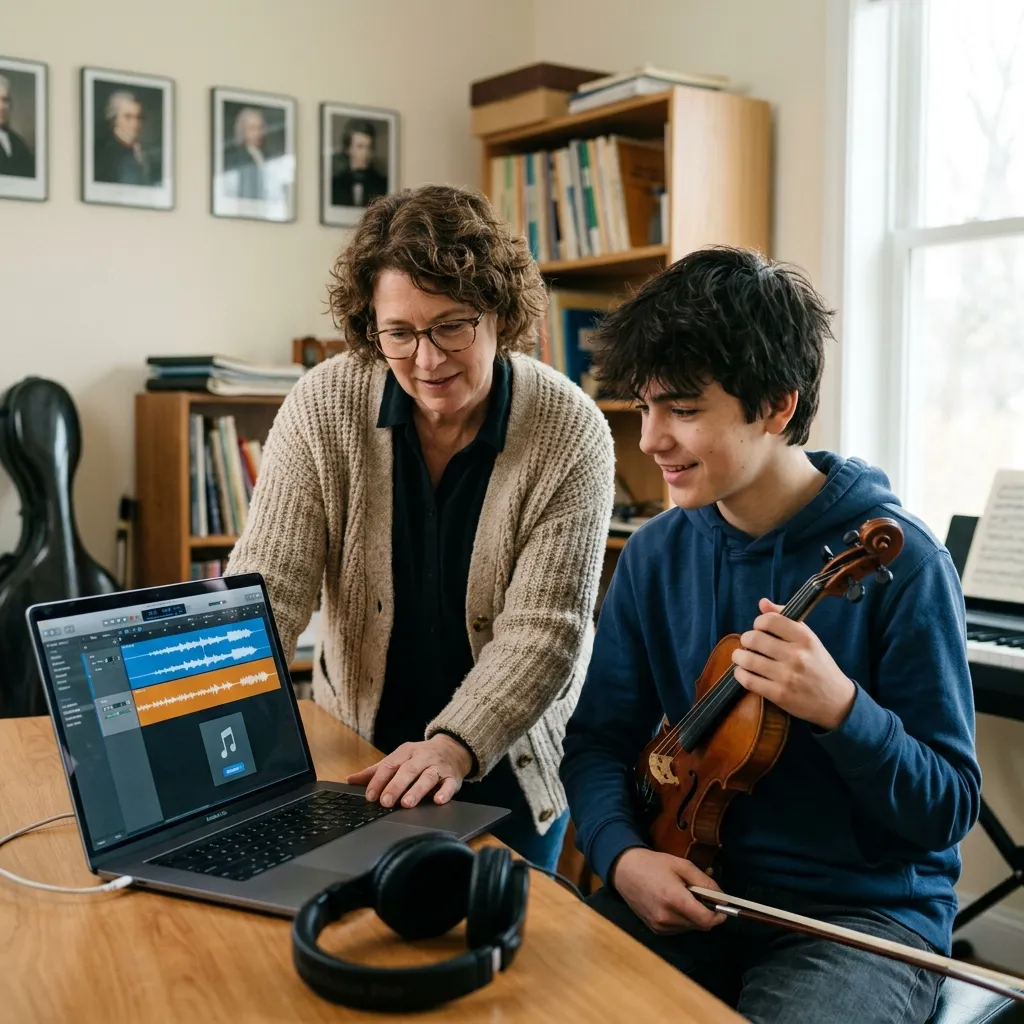
Lessons move faster when every student can open the same browser tool in under a minute. Teachers can demonstrate intervals, C major patterns, solfege labels, and chord shapes on CreateMusicAI's Virtual Piano without asking a class to install software or share one physical keyboard.

Songwriters Checking Chords
A chord idea can disappear while a DAW loads or a controller connects. Use the Virtual Piano to test a progression, find a melody note, or compare low and high registers in seconds, then move the stronger idea into your writing session.

Quick Practice On Shared Devices
Chromebooks, office laptops, tablets, and borrowed computers rarely have music apps ready. The Online Virtual Piano runs in the browser, supports touch or keyboard input, and keeps the main controls visible so short practice breaks do not turn into setup time.
Virtual Piano FAQs
Answers to common questions about using an Online Virtual Piano for notes, shortcuts, sound, range, and beginner practice.
What is a Virtual Piano?
A Virtual Piano is a playable piano keyboard that runs in your browser instead of a physical instrument or installed app. CreateMusicAI's Virtual Piano lets you click, tap, or use computer keys to hear notes, test chords, and practice basic keyboard patterns right away; use the AI Melody Generator when you want to turn those ideas into generated melody drafts.
Can I play the Online Virtual Piano with my computer keyboard?
Yes. You can play the online virtual piano with computer keyboard shortcuts, mouse, or touch. Use it for quick melodies, chord practice, and note-name learning, then pair it with the metronome or online tuner when you practice timing and pitch.
Does this Virtual Piano include all 88 keys?
Yes. The full layout gives you an 88-key virtual piano keyboard in the browser. Beginner labels help with note names, and the wider range is useful before moving ideas into the MIDI editor.
Why does the page also include a beginner keyboard?
The beginner layout makes the Virtual Piano easier to read when you are learning note names, shortcuts, scales, and simple songs. It shows a smaller range with wider keys, then you can switch to the full 88-key mode when the piece needs more register movement.
Does the Virtual Piano sound like a real piano?
CreateMusicAI's Virtual Piano uses sampled piano audio when the browser allows it, so notes have a more natural piano attack than a plain oscillator. Browser audio still depends on your device, speakers, and connection, but the tool is designed for fast, clear practice.
Can I use this Online Virtual Piano on mobile?
Yes, you can tap the piano keys on phones and tablets. Smaller screens work best in beginner mode because the keys stay wider, while 88-key mode is available as a horizontally scrollable layout when you need the full piano range.
Can I learn piano with a Virtual Piano?
A browser piano can help you learn note names, keyboard geography, intervals, and basic chord shapes. It is not a full replacement for weighted keys or formal lessons, but it gives you a free online piano keyboard for daily orientation and quick practice.
Can I record or connect MIDI right now?
Not in this version. The current Online Virtual Piano focuses on instant browser playback, labels, sustain, and 88-key access. Recording, MIDI input, metronome tools, and lesson modes are natural next steps, but the page intentionally keeps the first workflow fast and uncluttered.